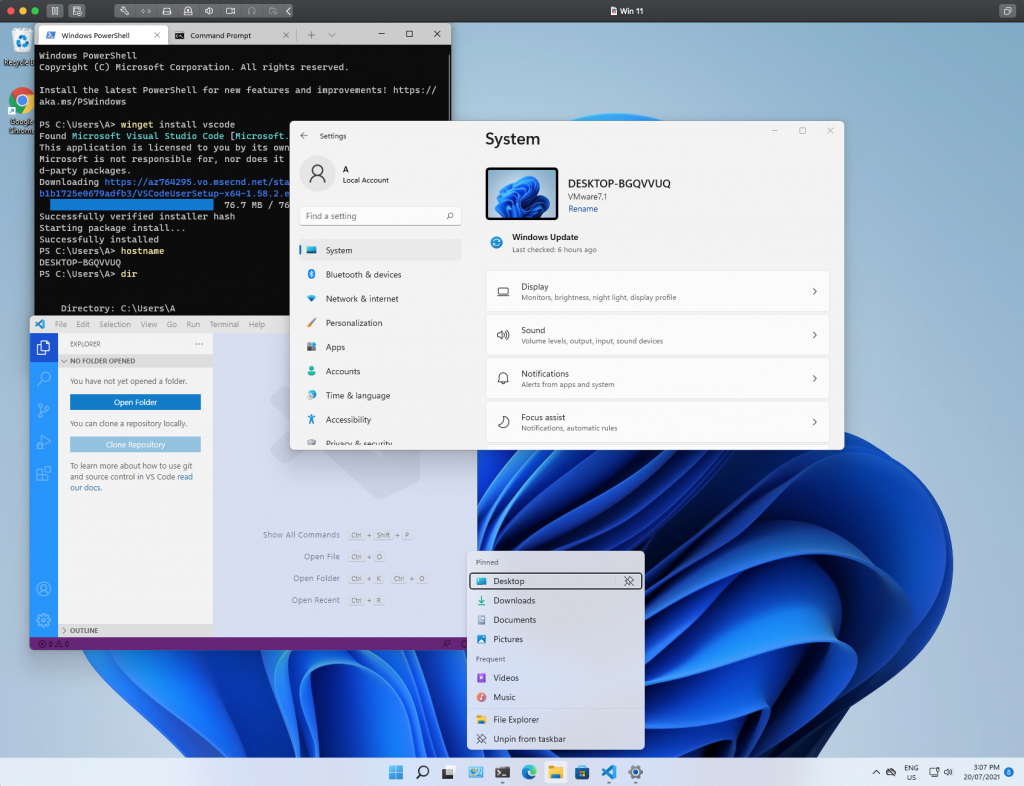
Windows 10 is the last version of Windows – yeah right. Now here’s Windows 11.
Currently available as preview for Windows Insiders I thought it time to give it a burl as a virtual machine.
Contents
Build & Requirements
- VMWare Fusion VM running on Mac OS Catalina 10.15.7 on iMac (27-inch, Late 2013) 24 GB RAM
- Recommend a VM with the following 2 vCPU, 4GB vRAM, 60GB SSD
- Windows Insider Program Dev Channel – you’ll need a Microsoft account to enable this within Windows 10
- Windows 10 ISO – download from the Windows Media Creation page
- You’ll need an activation key as one of the stated requirements is that Windows is activated
Steps
Create a VM
Windows 11 needs a Trusted Platform Module (TPM) chip which at this stage means it will not install on older hardware. I had an existing Windows 10 VM and whilst it is possible to add TPM to an existing machine it is not practical to jump through all the hoops required to get Windows 11 installed. I did manage to get there in the end but the process encrypted the VMX config file and I wasn’t able to address the issue with ethernet detailed below. I also had a legacy BIOS and TPM needs UEFI so a new VM was the only way to go.
Once Windows 10 is installed search for “insider” and you’ll find the option to enable the insider program for Windows. You’ll need to login with a Microsoft account and then select DEV channel which at the time or writing is the only channel for the Windows 11 preview. Down the track if you want a more stable build the other channels will offer Windows 11 preview.
Don’t forget to install VM Tools once Windows is installed.
Windows Update
Windows 11 is delivered via Windows Update. It will take some time to download and upgrade. Keep smashing the update button until it appears.
Ethernet Disabled
I had a weird outcome in that the Windows 11 upgrade process disabled an otherwise working virtual network adaptor. To get the ethernet adaptor enabled first shut down the VM and open the VMX configuration file. Replace the adaptor details in the VMX file with the following …
ethernet0.virtualDEV = "vmxnet3"Restart the VM and the ethernet adaptor should be enabled and working.
Thoughts
I have to say that after a day of using as a daily driver I really like Windows 11. By far the prettiest Windows has ever looked. If anything Windows 11 addresses the mismatched legacy of visual components that Windows has dragged along with each iteration.